
Description: All instruments use the same software concept.
Software
Software update
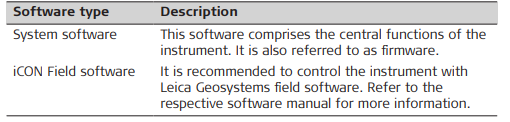
➜ The iCON software is stored in the flash RAM of the iCON iCR70/iCR80S.
➜ For the update process, a CC80 field controller is needed. Updating software can take some time. Ensure that the battery is at least 75% full before beginning the update, and do not remove the battery during the update process. Ensure that an instrument profile for the iCR70/iCR80S is available on the field controller. Refer to the iCON software manual for information about how to create an instrument profile.
- Download the most recent iCR70/iCR80S firmware file from https://myworld.leica-geosystems.com.
- Insert an SD card or USB stick into the computer. Copy the iCR70/iCR80S firmware file into the \SYSTEM directory on the storage device. If no \SYSTEM directory is available, then create the directory first
- Take the storage device out of the computer and insert it into the iCR70/iCR80S. Refer to Working with the Memory Device.
- Start the iCR70/iCR80S and the iCON software on the CC80 field controller.
- In the iCON software on the field controller: Select Devices from the Home Menu.
Select the matching instrument profile to connect to the iCR70/iCR80S.
- Tap the arrow button to the right of the iCR70/iCR80S profile. Select Sensor Utilities > Upload Firmware. If several firmware files are available on the storage device, the software automatically selects and displays the most recent firmware file.
- Tap Start Update to start the firmware update.
➜ A pop up informs you when the update is complete.
Licence activation: For licence activation, a field controller is needed. Ensure that an instrument profile for the iCR70/iCR80S is available on the field controller. Refer to the iCON software manual for information about how to create an instrument profile.
➜ Licences are key codes to enable software functions and applications which run on the device. You can order new licences on myWorld or by contacting your local service partner.
- Store the licence key file (*.key) in the \SYSTEM directory of a USB Stick.
➜ Alternatively have a printout of a licence key at hand. - Insert the USB Stick into the iCR70/iCR80S. Refer to Insert and remove a USB stick step-by-step.
- In the iCON software on the field controller: Select Devices from the Home Menu. Select the matching instrument profile to connect to the iCR70/iCR80S.

- Select Sensor Utilities > Upload licence key.
- Upload the licence key file or type in the licence code manually.
To upload a licence key file:
• Select the licence key file.
• Click Start Upload to start the activation process.
To type in a licence key:
• Select Input of licence key and type in the licence key from the printout.
• Click Start Upload to start the activation process.
A pop-up informs you about the licence activation status. Confirm the message.
➜ If the software maintenance licence has expired: Contact your local service partner to update the software on the product.
➜ If the licence activation fails: Contact your local service partner or create a new support request
on myWorld.