
General description
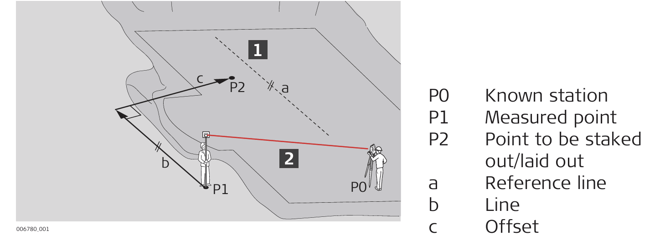
Given:
• Instrument is connected and set up with known station and height.
• Points are active within the current job. Refer to Importing data to the project step-by-step.
↪ Note that the main workflow refers to Total Station. For GNSS press Measure to record a point.
Stake out/Lay out Points with reference to a line step-by-step
- Open the Stakeout/Layout Points app.
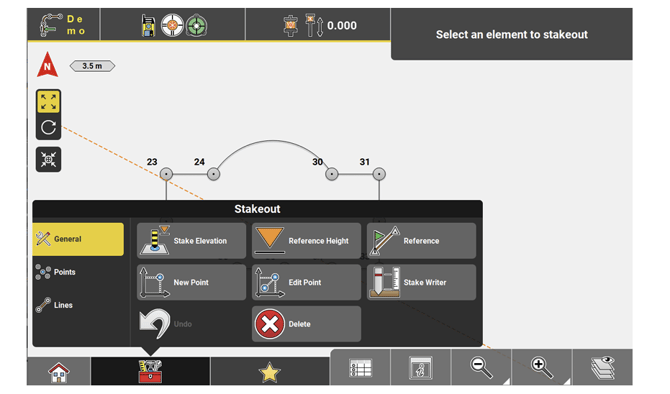
↪ Sample screenshots are taken from iCON site > Stakeout app. - Select Reference from the Toolbox.
- Define the reference line, then use the Toolbar to define any offset
for the line. Tap to accept.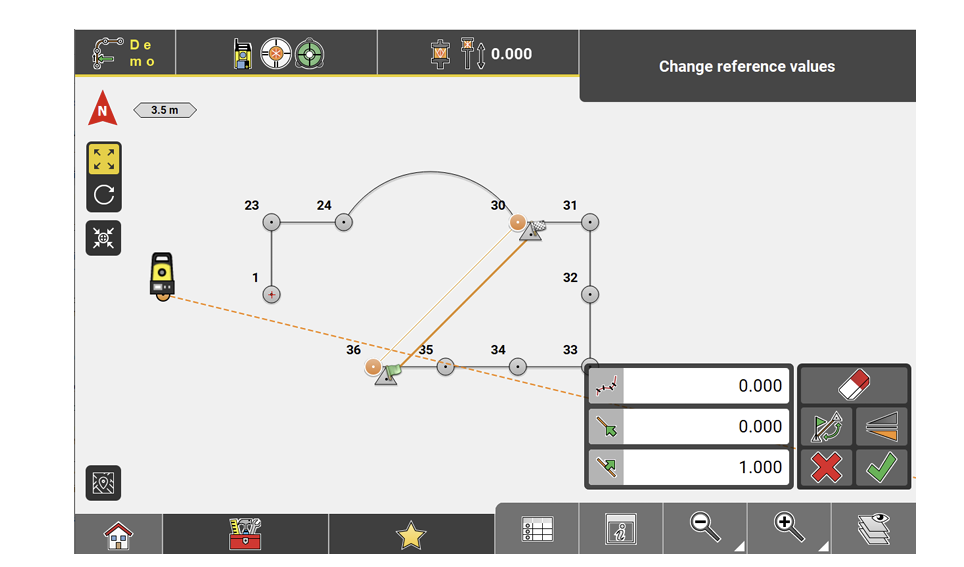
- Select a point to be staked/laid out and press Measure.
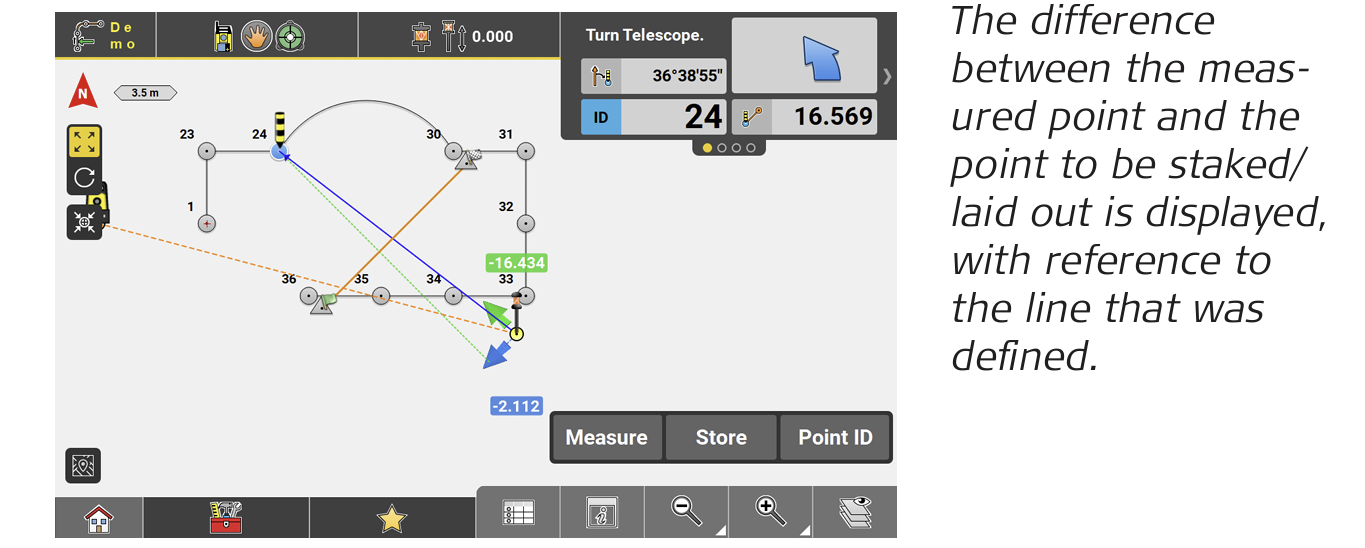
- Follow the guidance to navigate the target to the point to be staked/laid out. Once the telescope is aimed at the target point, press Measure again.
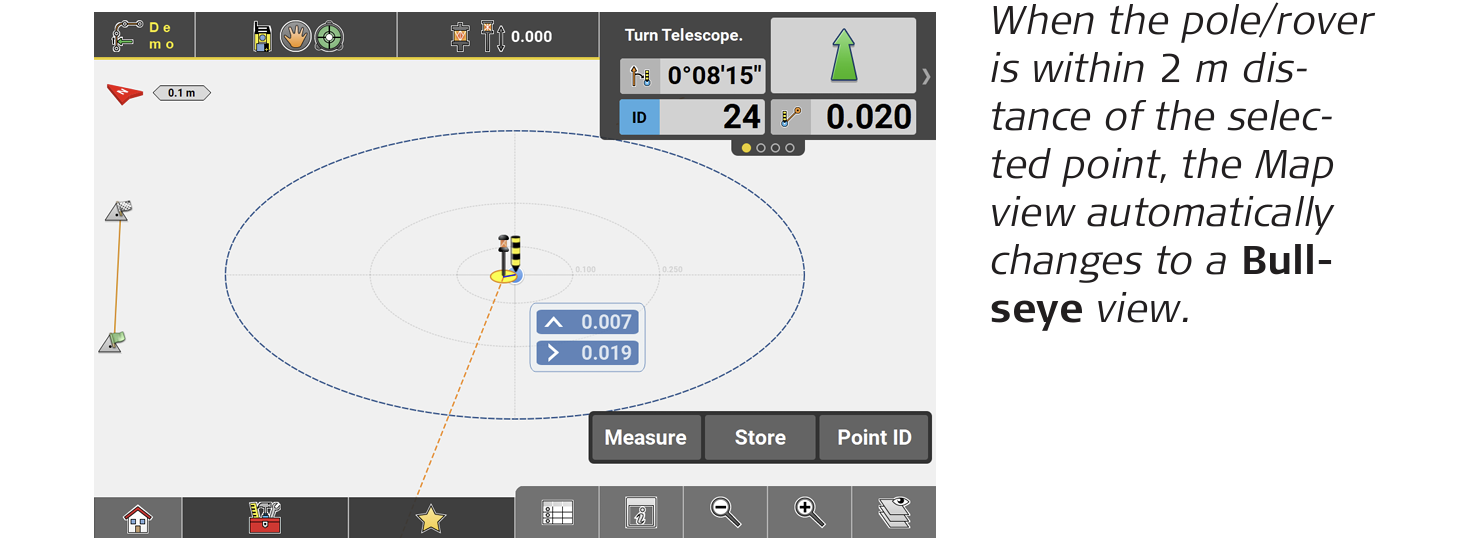
- Move the target towards the selected point until it is within tolerance. Then tap Store to record the point.
- Once the location is marked (in the field) and stored, the next point can be selected, and the process can repeat.
↪ GNSS and Robotic Total Station approach: As the target moves around, real-time measurement data and guidance information is constantly displayed in the Information bar. Once the point in the screen turns green, the point is staked/laid out within tolerance. To record points using the Total Station, press Store. If using GNSS, press Measure.