➜ Milling Pilot license needed.
General description: Differential Milling allows you to carry out milling tasks by using a
GNSS antenna and a field controller in the following way:
• Mount the antenna on the milling machine.
• Connect the iCON software to the antenna and configure the milling machine.
• Load the design surface or road.
• Load the existing surface (measured/as-built).
The software calculates the left and right cut values and the cross slope of the design model at the current GNSS position as well as ahead of the milling machine.
Given:
• GNSS antenna is connected to the iCON software.
• A coordinate system is loaded to the project.
• A road model (*.lmd or *.xml) and a surface (*.trm, *.dxf or *.xml) or two surfaces (*.trm, *.dxf or *.xml) are loaded in the project.
Milling step-by-step
- Open the Milling app.
➜ The machine must be calibrated before the milling can be started. - Select Machine Calibration from the toolbox.
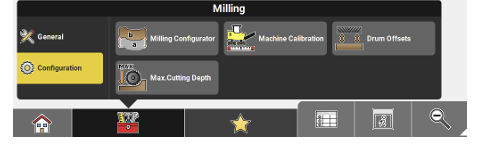
The Machine Calibration screen is displayed.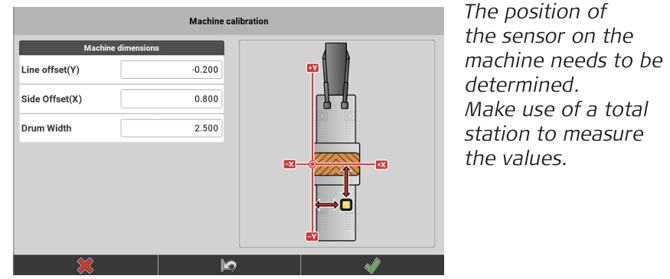
- • As Line offset(Y) enter the distance between drum and sensor as measured alongside of the machine. If the sensor is placed behind the drum, then the value is negative.
• As Side Offset(X) enter the distance between the left edge of the drum to the sensor. If the sensor is placed further to left than the left drum edge, then the value is negative.
• As Drum Width enter the distance between the the left and the right edge of the drum.
Tap to confirm the entered values and return to the Map view.
➜ To restore default values tap .
. - Continue with selecting the design surface for milling. Tap on the surface in the Map view to select it. Alternatively, select Milling Configurator from the toolbox.
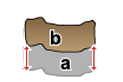
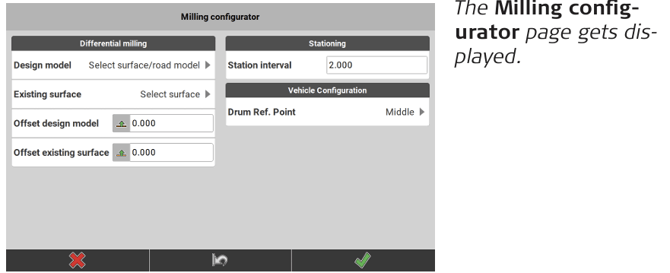
- • Tap Design model to load the terrain model of the design surface.
• Tap Existing surface to load the terrain model of the existing surface.
• If necessary, enter vertical offsets for the loaded terrain models.
• Define the Station interval. This value defines the distance interval for which the software calculates the next cut and cross slope values. The map scale is adapted to the entered value.
• Set the correct Drum Ref. Point. Select from 'Middle', 'Left', 'Right'.
Tap to accept the settings and return to the map.
➜ To restore default values tap .
.
➜ When milling curved surfaces a reference line is needed for machine navigation. To define a reference line select Reference from the Toolbox.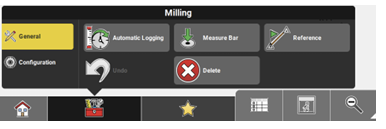
In order to get guidance along a reference line in the Milling View, go to View and tap on Light Bar. See also: Viewing options for foreman
➜ Different milling machines have different maximum cutting depths. Select Max Cutting Depth from the Toolbox and enter the maximum cutting depth value of the machine in use.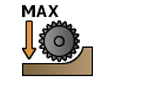
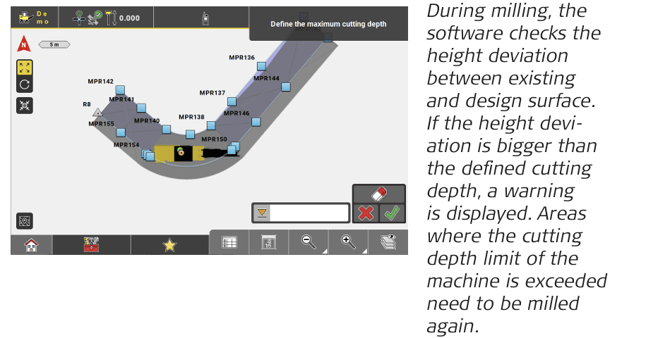
➜ The maximum cutting depth value is empty by default. If no value is entered, there are no checks for cutting depth.
Tap to accept the settings and return to the map.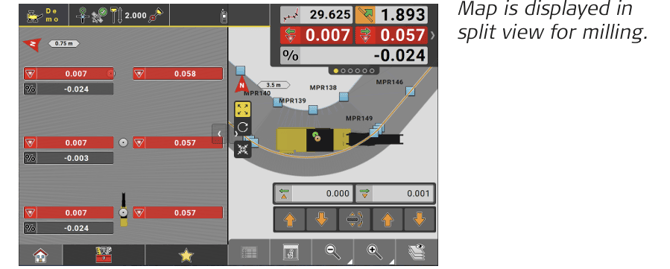
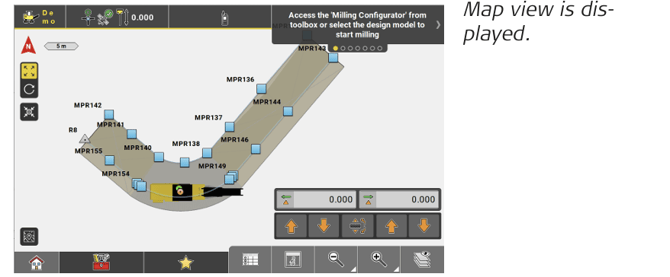
➜ The Milling view on the left is not interactive. To allow for interaction, switch to the regular Map view on the right.
• Tap the buttons, in order to hide one or the other view.
• The Milling view can be deactivated. Go to View and tap on Milling View to deselect it.
• Point List is only available when the Milling View is hidden or deactivated.
• In order to change the regular map view into cross-section mode, go to
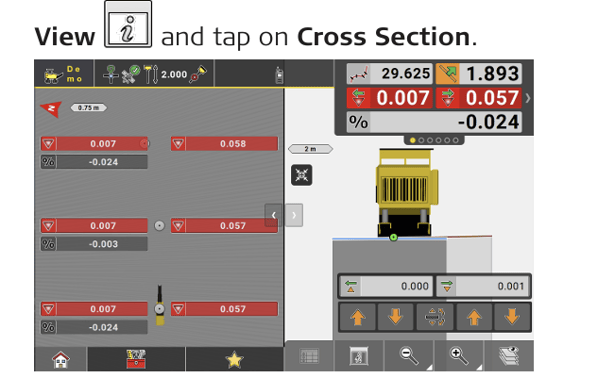
• The Drum Offsets toolbar is only available when Use drum offsets is active. For further information refer to: Using Drum Offsets step-by-step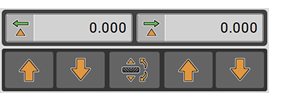
• To use the Measure Bar, select Measure Bar from the Toolbox. The Measure Bar gets displayed above the Toolbar for Drum Offsets.
- Drive the milling machine along the surface.
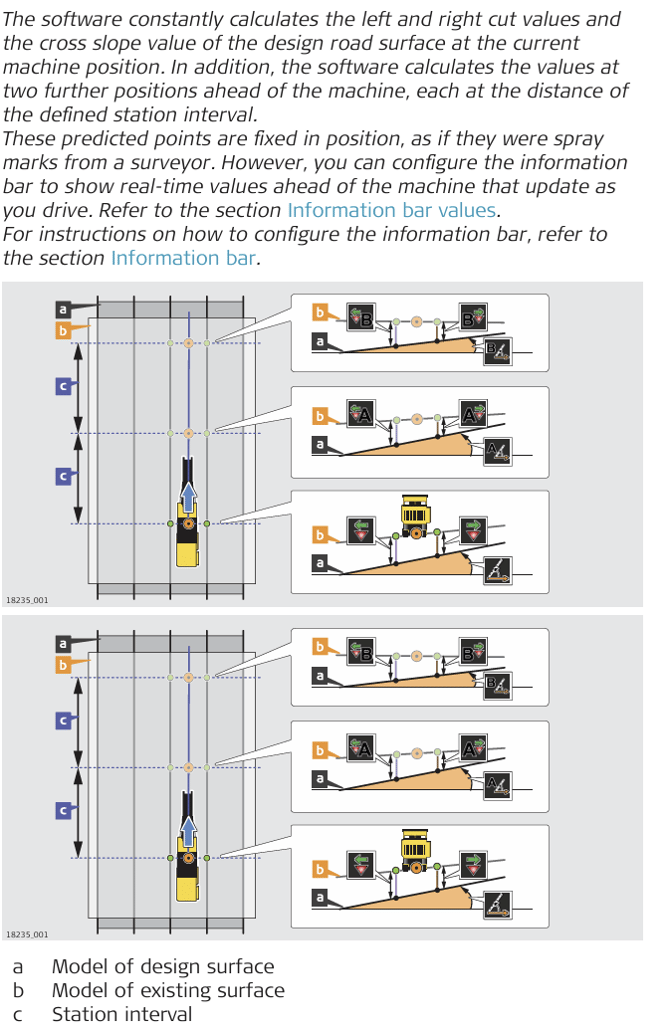
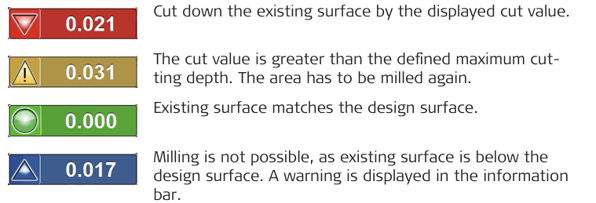
Cut value indication in map view:

Automated Differential Milling
When using automated differential milling, the iCON software sends the Cut and Cross Slope information directly to the Machine Controller.
Automatic Milling is available for the following Wirtgen machines:
• Large Milling machines with LevelPro II controller 2011-2019y, W200 W250 models
• Large Milling machines with LevelPro Active controller 2019>, W200 W250Fi models
• Compact Milling machines with LevelPro Plus controller 2018>, W100 W150 models
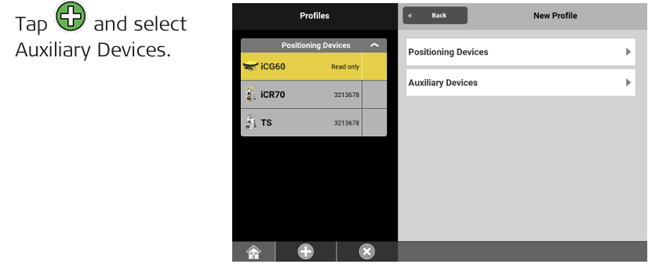
- In order to configure the connection to the Milling machine, open the Devices app.
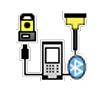
➜ Assumption is that the controller is already connected to the positioning sensor. -
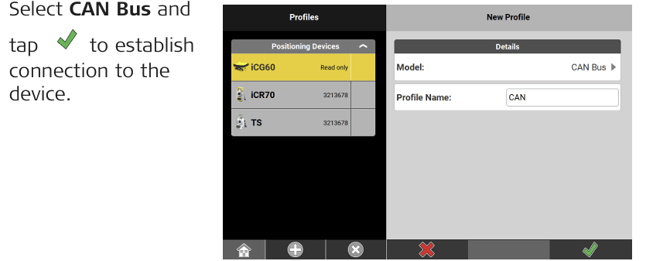
-
-
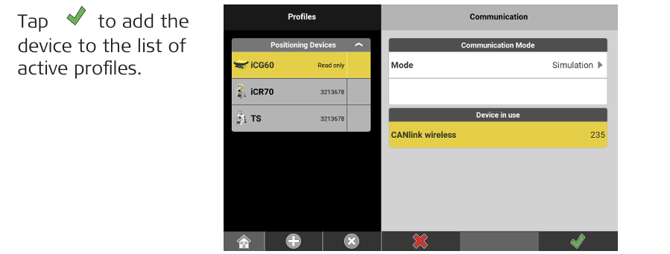
➜ Connection is established via Bluetooth.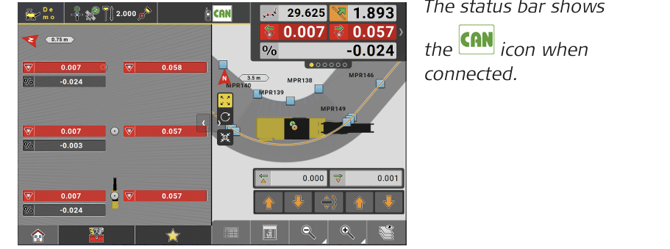
When there is an error in the connection the icon turns to .
.
➜ The activation of the Automatic Milling mode is done on the Wirtgen Machine Controller.
Using Drum Offsets step-by-step
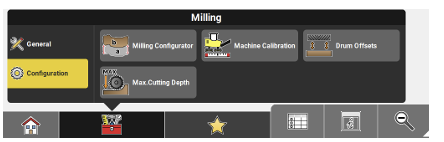
- From the toolbox select Drum Offsets
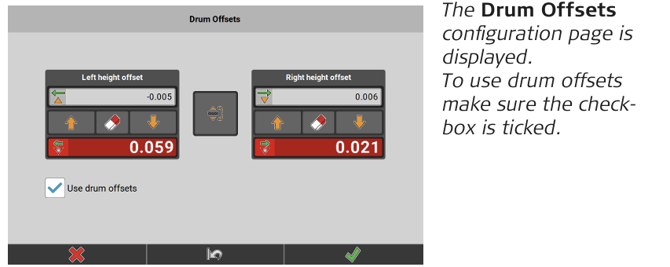
• Tap the up/down arrow buttons to adjust the left and right
  height
offset values.
• If the machine controller is configured to control the left side with height and the right side with slope, tap and adjust the slope offset on the right.
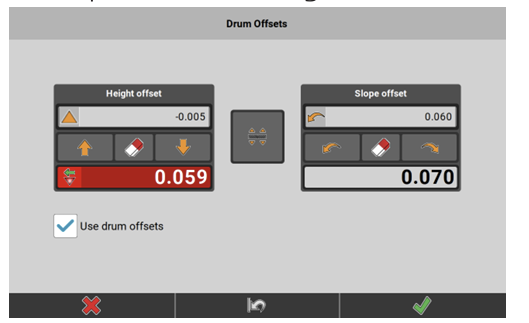
The resulting cut/fill depths are updated accordingly. Cut values are highlighted in red, fill values in blue.
➜ Tap to clear the currently defined offset values.
 - Tap
 to accept the settings and return to the map.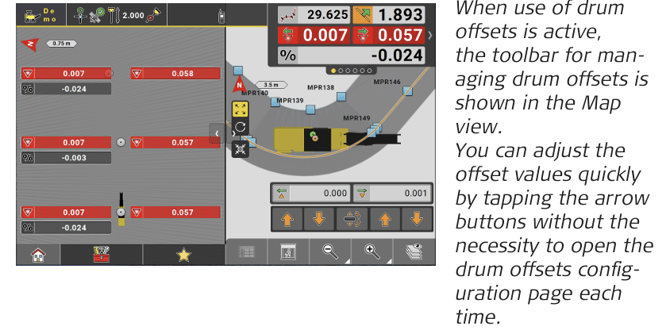
➜ If the machine controller is configured such that slope is on the left side, open the Milling configurator from the toolbox and adjust the Vehicle Configuration such that the Drum Ref. Point is on the right side.
➜ Incrementation of the offset values depends on the Display Accuracy and can be changed under Settings > System > Display. See also: Display Units used for distance and angle can be changed under Settings > Units & Tolerances. See also: Distance & Angle For details on incrementation steps see tables below.
Incrementation of Height offset values:
| Height Accuracy | Meter | Feet | Feet Fractional |
| Simple | 0.01 | 0.1 | 1 " |
| Standard | 0.001 | 0.01 | 1/8 " |
| Precise | 0.001 | 0.005 | 1/16 " |
Incrementation of Slope offset values:
| Slope - decimal degrees/gons | Slope - degrees minutes seconds |
% | H:V, V:H |
| 0.1 | 1 minute | 0.1 | n/a |
Information bar values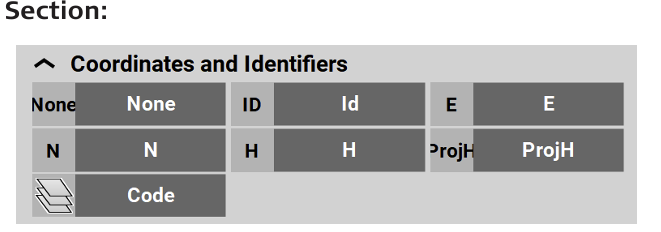
| Type/Icon | Description |
|
Id
|
Point ID of the current point to record. |
|
E
|
East value at the current target position. |
|
N
|
North value at the current target position. |
|
H
|
Height at the current target position. |
|
ProjH
|
A value set during project creation to define a height shift for measured points in the project. |
|
Code |
Code/layer for the next point to record. |


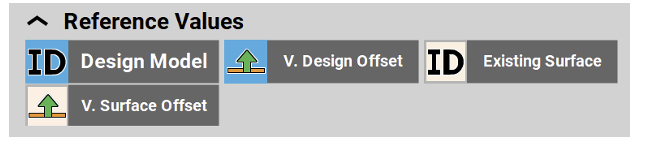
| Type/Icon | Description |
|
Design Model
|
Name of the design surface. |
|
V. Design Offset
|
Vertical offset value of the design surface. |
|
Existing Surface
|
Name of the existing surface. |
|
V. Surface Offset
|
Vertical offset value of the defined reference surface. |


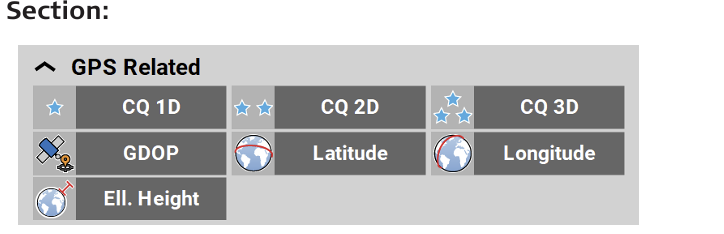
| Type/Icon | Description |
|
CQ 1D
|
Coordinate quality value for the height information at the current position. |
|
CQ 2D
|
Coordinate quality values for the plain information at the current position. |
|
CQ 3D
|
Coordinate quality values for a combination of the height and the plain information at the current position. |
|
GDOP
|
Geometric dilution of precision quality value at the current position. |
|
Latitude
|
Global coordinate to define the north-south poition of a point. |
|
Longitude
|
Global coordinate to define the east-west position of a point. |
|
Ell. Height
|
Global coordinate to define the ellipsoidal height of a point. |


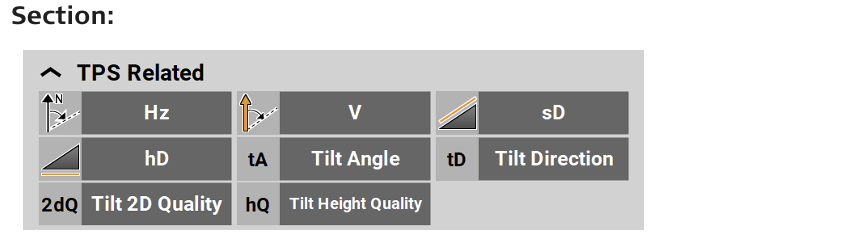
| Type/Icon | Description |
|
Hz
|
Horizontal angle to the current target position. |
|
V
|
Vertical/zenith angle to the current target position. |
|
sD
|
Slope distance to the last point measured. |
|
hD
|
Horizontal distance to the last point measured. |
|
Tilt Angle
|
When using AutoPole: Tilt angle of pole. ➜ Not supported in the Milling app. |
|
Tilt Direction
|
When using AutoPole: Direction in which the pole is tilted, with regard to the compass. ➜ Not supported in the Milling app. |
|
Tilt 2D Quality
|
When using AutoPole: Quality of position measurement. ➜ Not supported in the Milling app. |
|
Tilt Height Quality
|
When using AutoPole: Quality of height measurement. ➜ Not supported in the Milling app. |


|
Type/Icon |
Description |
|
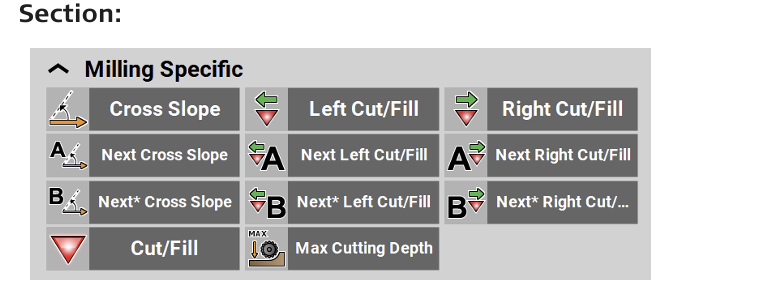
Cross Slope
|
Cross slope angle of the design model at the ➜ Depending on the current active setting for slope display, this value may also be displayed as H:V, V:H or %. |
|
Left Cut/Fill
|
Left Cut/Fill value over the current position. The value is calculated from the difference of the existing model to the design model. |
|
Right Cut/Fill
|
Right Cut/Fill value over the current position. The value is calculated from the difference of the existing model to the design model. |
|
Next Cross Slope
|
Calculated cross slope angle of the design model ahead of the machine at the distance of the defined station interval. |
|
Next Left Cut/Fill
|
Calculated left Cut/Fill value ahead of the machine at the distance of the defined station interval. |
|
Next Right Cut/Fill
|
Calculated right Cut/Fill value ahead of the machine at the distance of the defined station interval. |
|
Next* Cross Slope
|
Calculated cross slope angle of the design model ahead of the machine at twice the distance of the defined station interval. |
|
Next* Left Cut/Fill
|
Calculated left Cut/Fill value ahead of the machine at twice the distance of the defined station interval. |
|
Next* Right Cut/Fill
|
Calculated right Cut/Fill value ahead of the machine at twice the distance of the defined station interval. |
|
Cut/Fill
|
Cut/Fill value of the last point measured. |
|
Max Cutting Depth
|
Shows the entered maximum cutting depth value. |


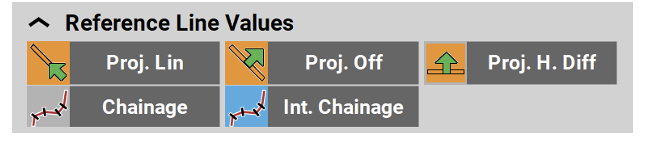
| Type/Icon | Description |
|
Proj.Lin
|
Line value at measured point along the selected reference line. |
|
Proj.Off
|
Offset value at measured point to the selected reference line. |
|
Proj. H. Diff
|
Height difference at measured point to the selected reference line. |
|
Chainage
|
Chainage at the measured point along the selected reference line, including the station equation. |
|
Int. Chainage
|
Chainage at the measured point along the selected reference line, without station equation. |


| Type/Icon | Description |
|
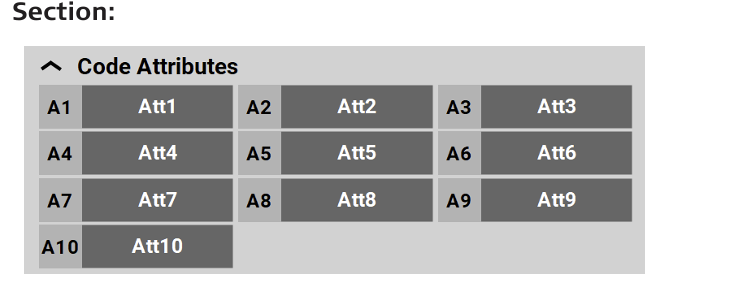
Att1 ... Att10
|
Code attributes 1 to 10 of measured point. Up to 25 attributes can be defined, up to 10 attributes can be displayed in the Information bar. |