
Jump To:
Define communication method step-by-step
Machine communication iCON site + iCON build Plus
Atmospheric corrections
Editing TPS profile for using AutoPole step-by-step
Define communication method step-by-step
- To define the Communication method between instrument and controller select For Pole, within the Communication Settings container.
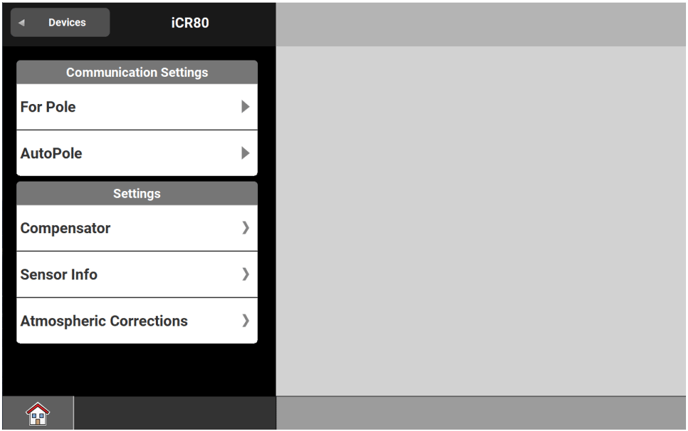
- Ensure that the Total Station is set accordingly.
- Connection Options:
- For Cable connection, ensure the cable is connected. The connected instrument is displayed in Device in use.
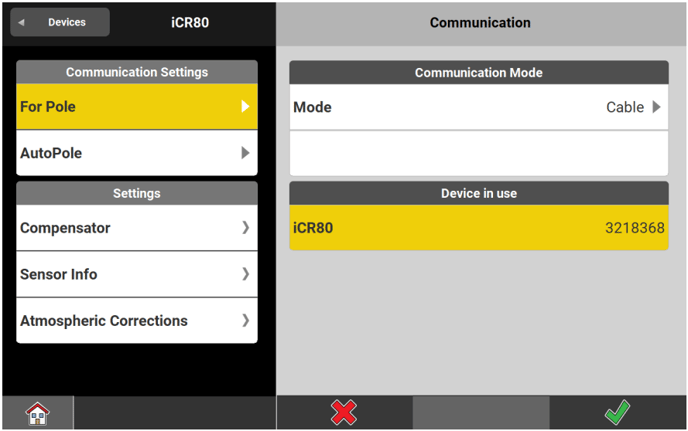
- For Bluetooth, press the Start Search key. Select the relevant instrument profile from Search Results.
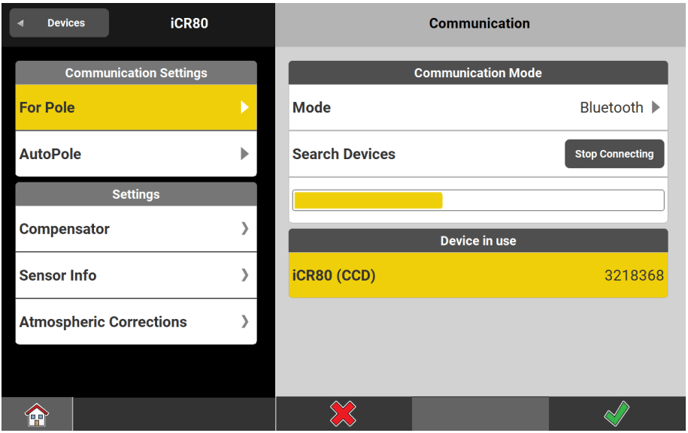
- Once the instrument is connected, it changes from white to yellow in the search list. Tap
 .
. - Once a profile has been created, connection to the instrument is automatically established each time the software is launched.
Precondition for this automatic connection: the instrument is turned on with the correct communication method, and the relevant instrument profile is selected in the Profiles screen. - To edit profile settings later, tap the arrow to the right of the profile name in the Profiles screen.
- For Cable connection, ensure the cable is connected. The connected instrument is displayed in Device in use.
Machine communication iCON site + iCON build Plus
Within the iCON iCR50 and the PowerTracker profiles it is also possible to define communication settings between Instrument and Machine.
- Within the Communication Settings container, tap For Machine Control.
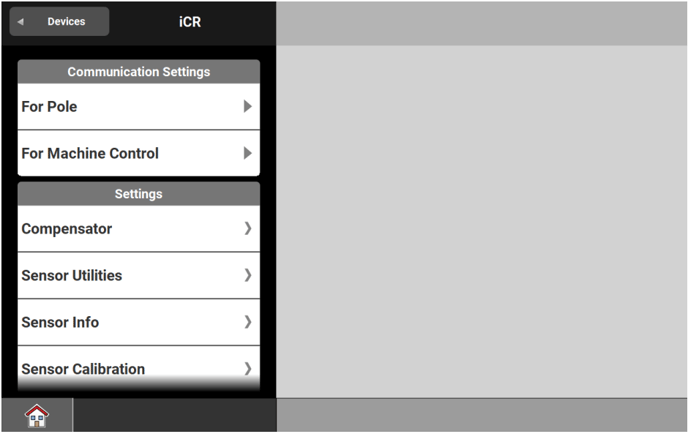
- From here, define the Communication Mode and the Prism used on machine.
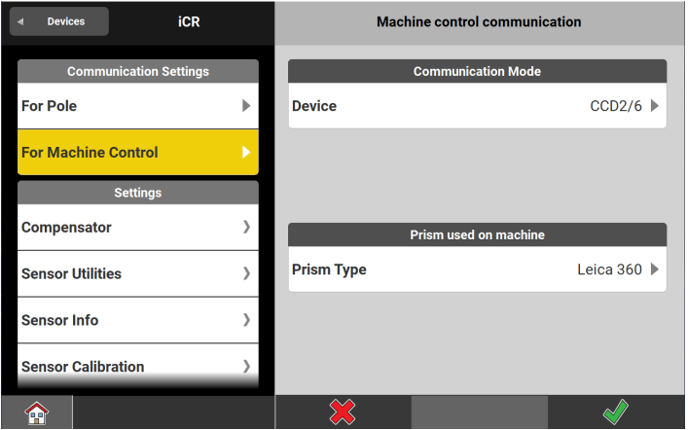
- Tap
 when finished.
☞ To switch from Survey Mode to Machine Control Mode, tap the Machine Control key  on the profile name in the Profiles screen.
A Machine mode switch screen is displayed while the switch is ongoing.
Tap the  key to switch back to Survey Mode.
Atmospheric corrections
Within a Total Station profile it is also possible to define atmospheric correction settings.
- Within the Settings container, tap Atmospheric Corrections.
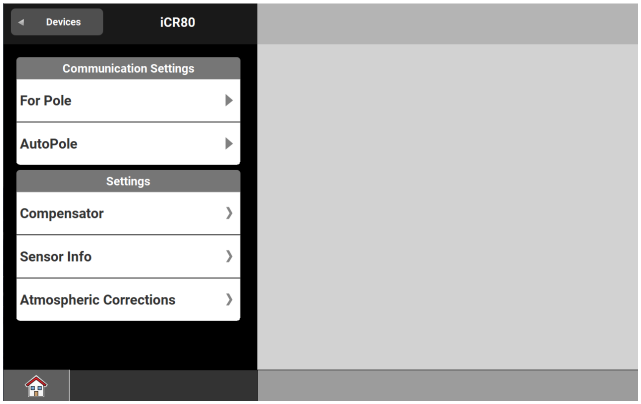
- Input the desired values for Temperature and Pressure.
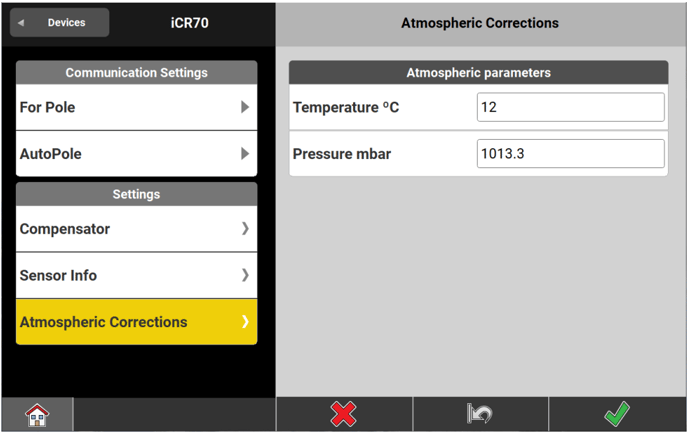
- Tap
 when finished.
- To reset to default settings tap
 .
.
- To reset to default settings tap
☞ The values for Temperature and Pressure are displayed and must be entered according to the current unit settings.
Editing TPS profile for using AutoPole step-by-step
- To establish a connection to AutoPole edit the profile settings for the total station.
Tap the arrow on the right-hand side of the profile name in the Profiles screen.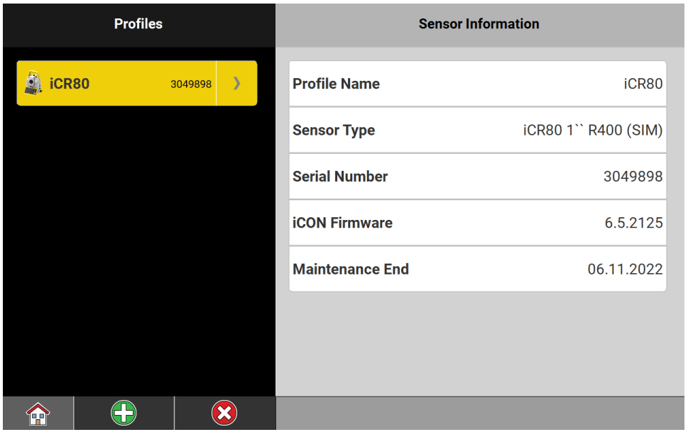
- AutoPole is not supported with GNSS.
- Under Communication Settings tap on "AutoPole".
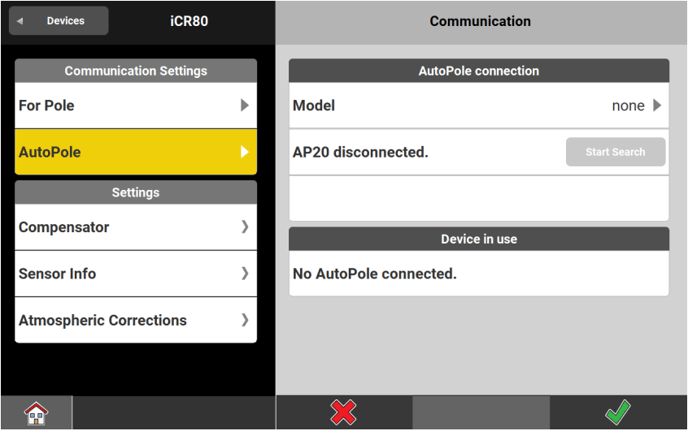
The Communication page is displayed. - Tap on Model and select the pole model/sales variant that you want to connect to.
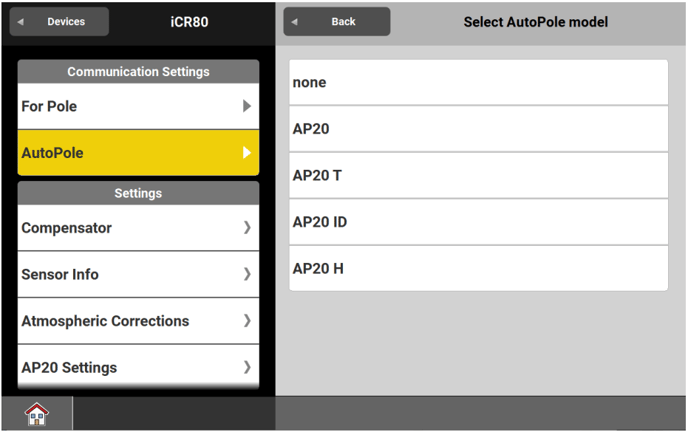
- For information on the different models/sales variants see: Overview
- Back in the Communication page tap "Start Search".
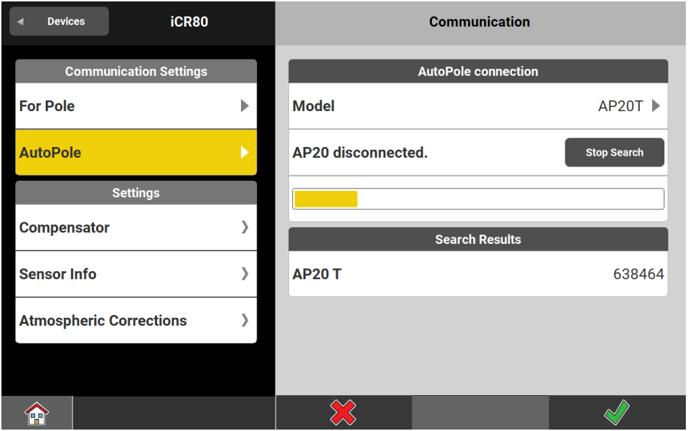
- If a pole of the selected model is in reach it will be listed under Search Results. If more than one pole is in reach all will be listed.
- Tap on the AP20 to be used.
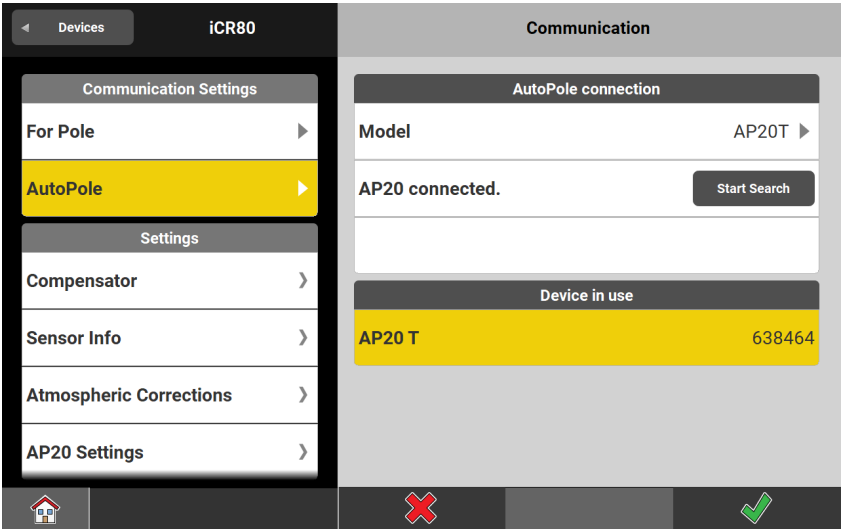
- Tap
 .
. - Tap AP20 Settings.
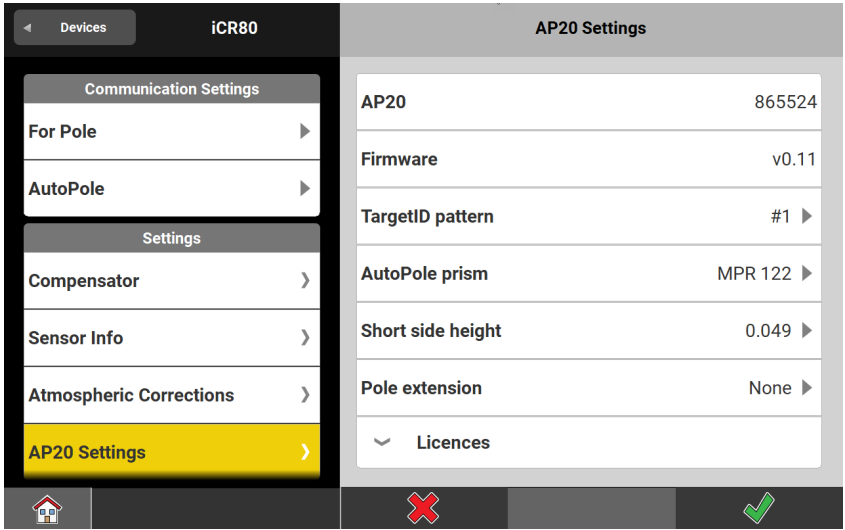
- You can select a different Auto pole prism and select a suitable Short side height. If you are using an extension for the pole select the correct Pole extension.
- To see which licenses are active tap the arrow on the left-hand side of Licences to open the drop-down information box.
- Tap .
- AP20 is ready for being used.
- For information on working with AutoPole in any of the apps see: Overview.