Import models
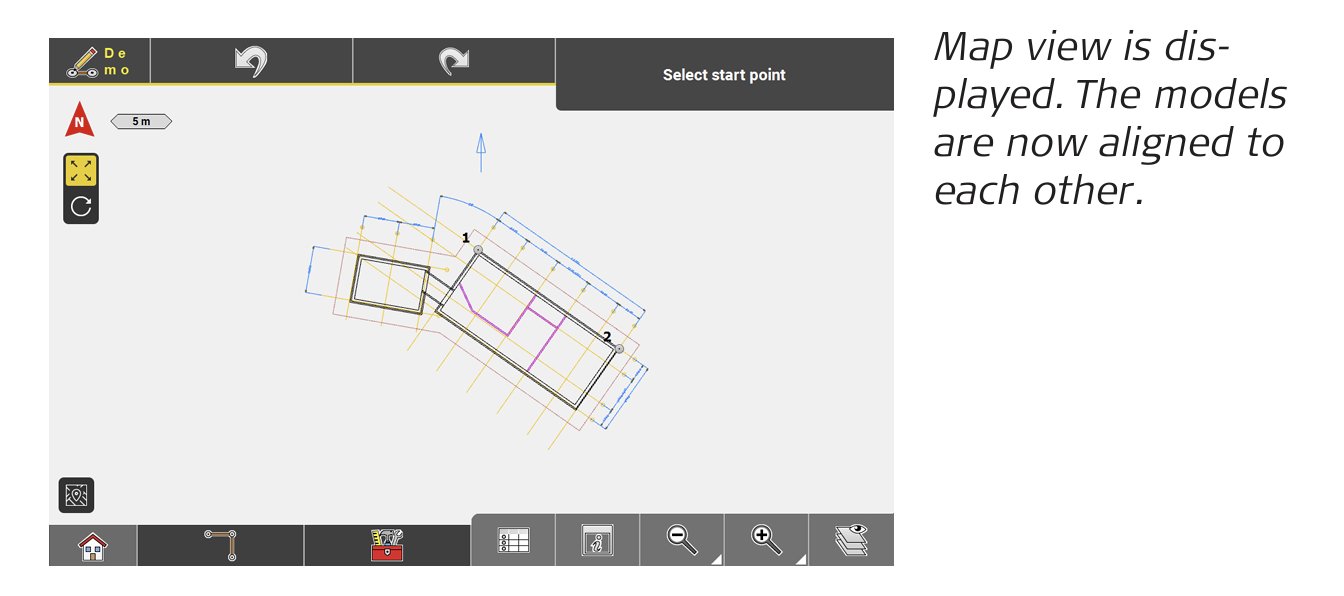
It is possible to import several models to a job, such as floor plans or installation plans. After import, you can scale, rotate and align these models to each other using the Data Merger tool.
Allowed file formats:
• 2D PDF: Vector type of PDF, typically created from a CAD program.
• DXF
• DWG
➜ For information on how to import reference data, refer to Importing data to the project step-by-step (within 2.2 Import, Export, or Delete Data).
Merge models step by-step
➜ Ensure that the necessary models are loaded to the active project.
- Open the Draw/Sketching app.

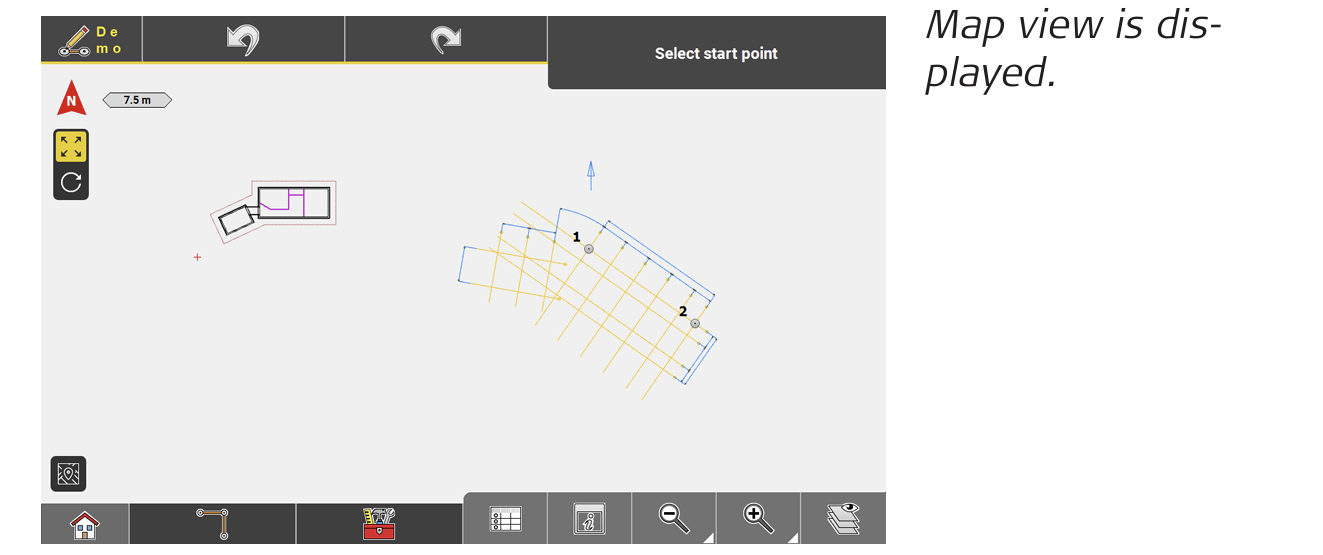
➜ Each model must include two points which can serve as reference points for scaling, rotating and aligning the vector data. If necessary, create these points for each model before merging the models. - To merge the models, select Data Merger from the Sketching Functions menu. See also: Sketching functions Overview

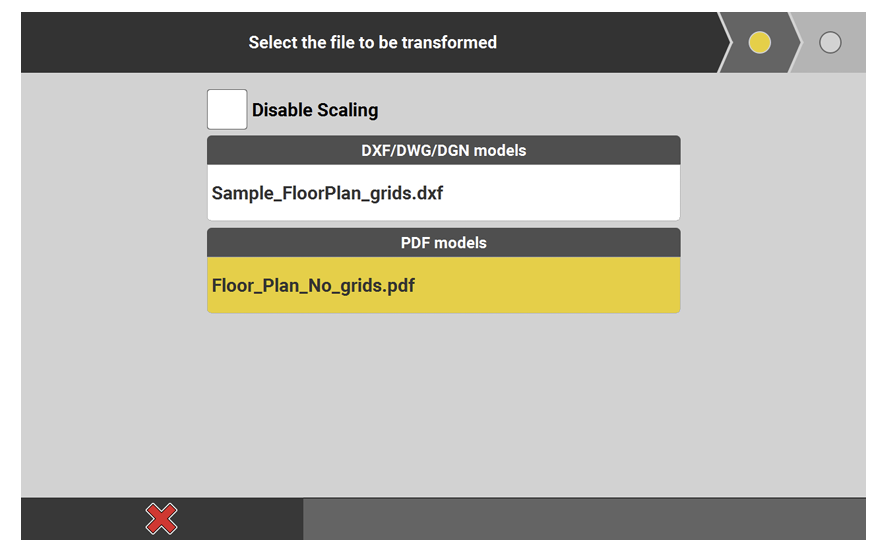
- Select the model to be scaled, rotated and aligned. Tap
 to proceed to the next Wizard step.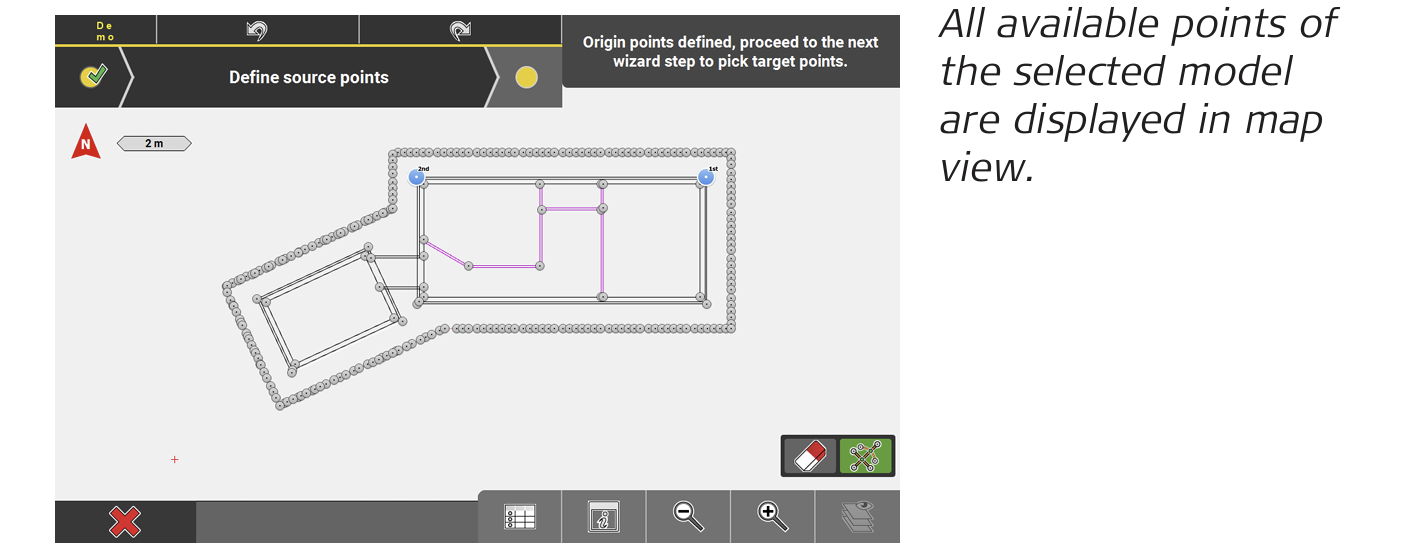
- Select two points to be used as source points. To cancel point selection, tap
 . Tap
. Tap  to proceed to the next Wizard step.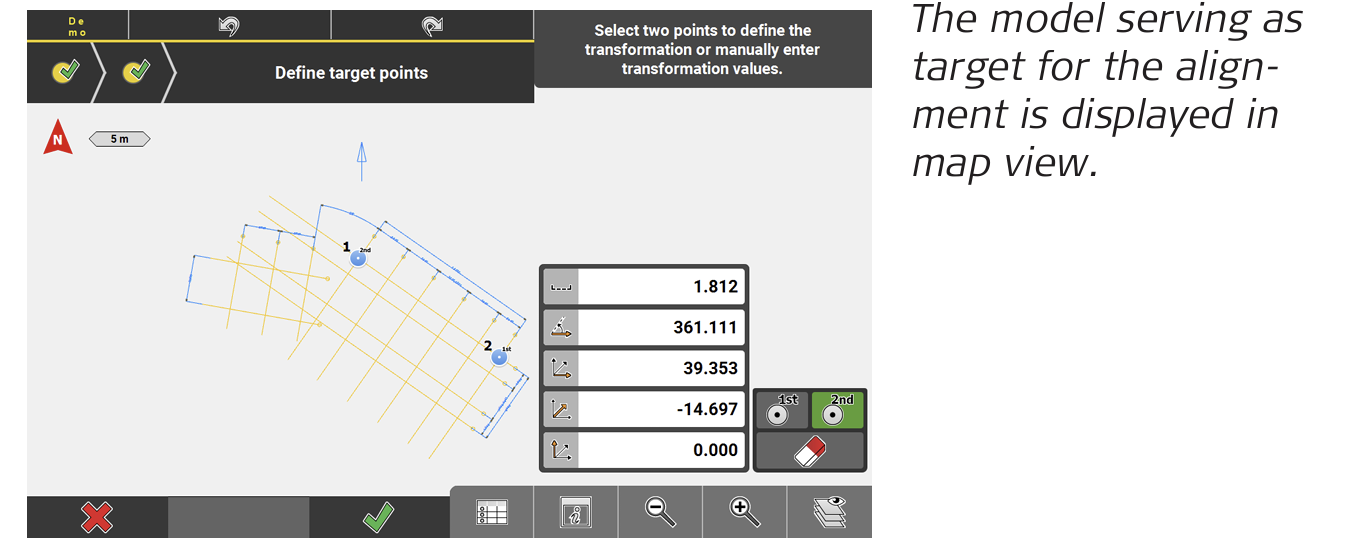
- Select two points to be used as target points. To cancel point selection, tap
 .
.
➜ If necessary, enable the option Show Points in the Layer Manager. - To merge the models, tap
 .
. - If necessary, edit the file name of the merged models. Tap
 to save.