
General description
Checks is an application that can be used to check geometries by selecting or measuring points and lines.
You can make use of reference data and/or measured and sketched data as well as the geometry from IFC objects.
➜ In order to make use of IFC geometry a license for Layout Objects or Verification is required.
Results are shown in the Information bar within the application.
➜ If necessary, you can save the results to include them in a Checks report later. For information on how to create a report, refer to 2.3 How to Create a Report.
Calculated values are tie distance results, angles, areas and block volumes:
• Horizontal distance, sloped distance, height difference, slope
• Sum horizontal, sum sloped, azimuth, last included angle
• Area and perimeter in plane and tilted
• Block volume, plane and tilted
➜ Tilted area and perimeter allow also to calculate vertical geometries, for example the size of a window.
How to do checks step-by-step
➜ Sample screenshots are taken from iCON build.
- Open the Checks app.

- Select or measure points, lines, arcs or a circle to check geometries.
➜ Points and lines have to be selected or measured in an ordered way, either in clockwise or anti-clockwise direction.
➜ You have got the option to select points/objects by reading a QR Code.
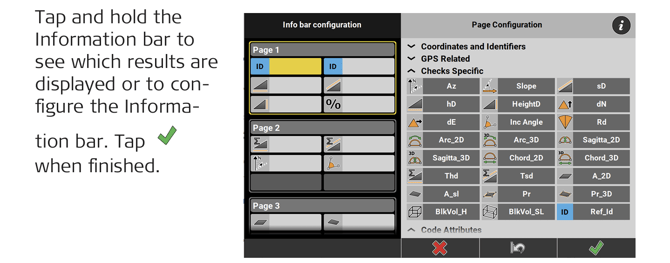
Tap and hold the Measure bar and configure it such that it shows
the QR-Scan button. Tap when finished. Back in the Map View tap QR-Scan. See also: IFC object selection using QR-code
➜ To be able to use the QR-Scan function your entitlement needs to include the "QR Code Reader licence. -

➜ Tap Clear in the Measure bar to deselect the measured or selected points, lines, arcs or circle.
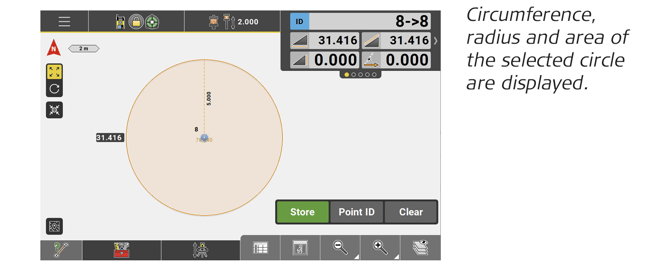
➜ Only one circle can be selected at a time, and you cannot select any other element, while a circle is selected. Polylines including arc elements can be selected with iCON site Plus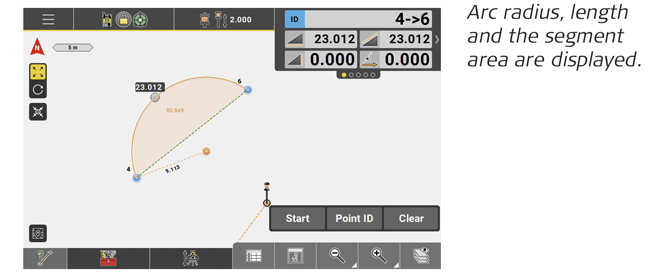
➜ To save a result, select Save for Report from the toolbox.
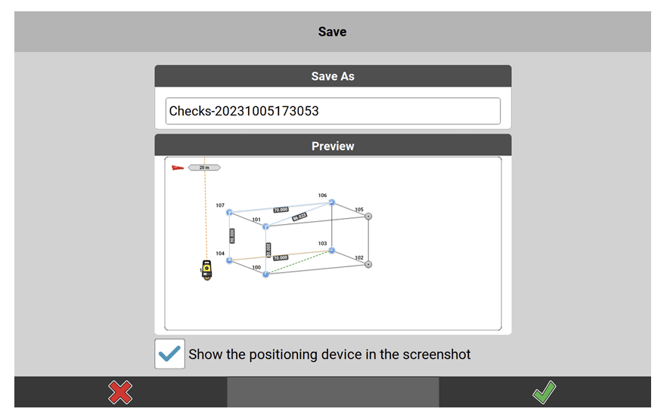
• If necessary, change the default file name.
• Choose whether the positioning device shall be shown in the screenshot to be saved with the report.
• To save the results, tap . Results are stored separately depending on the applied method (Radial, Polygonal, Point to line, see below.).
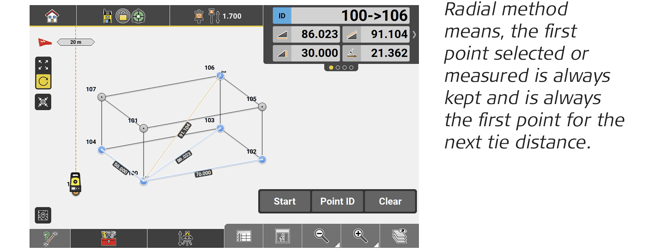
 - To switch to a radial calculation method select Radial from the Toolbox.

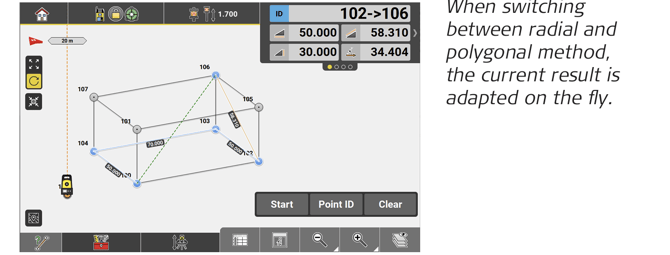
- To switch back to the polygonal calculation method select Polygonal from the Toolbox.

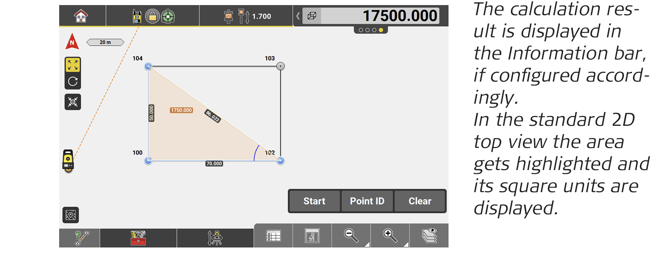
- For calculating block volumes select Block Volume from the Toolbox.

- Select or measure at least 3 points in order to define an area, and enter the desired height value.
Then tap to make the block volume be calculated.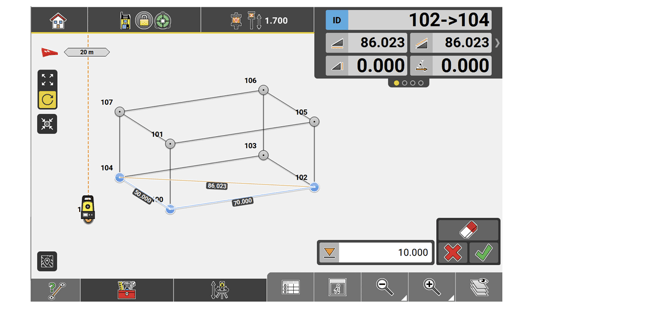
- For calculating offset values of measured or selected points to a selected reference line, select Point to line from the Toolbox.

- Select a line as reference line or define a reference line by selecting/measuring two points.
Then tap to confirm the reference line.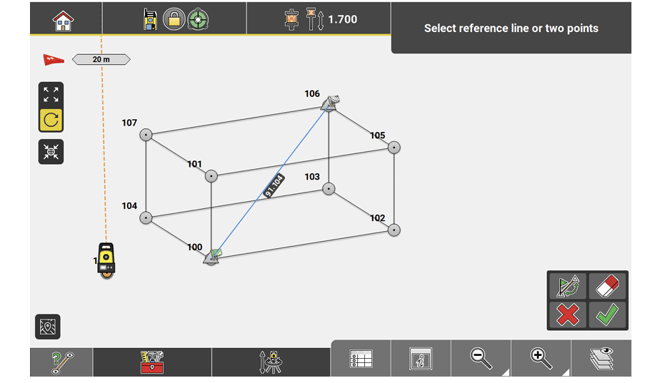
- Proceed with selecting or measuring points.
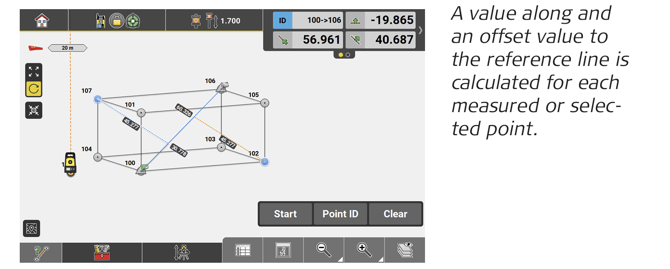
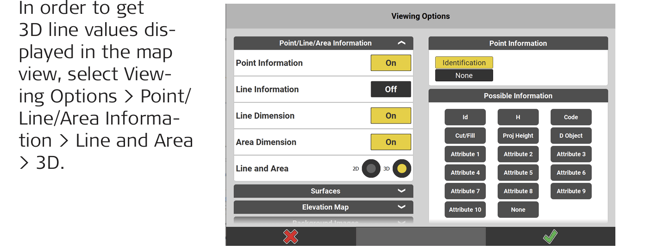
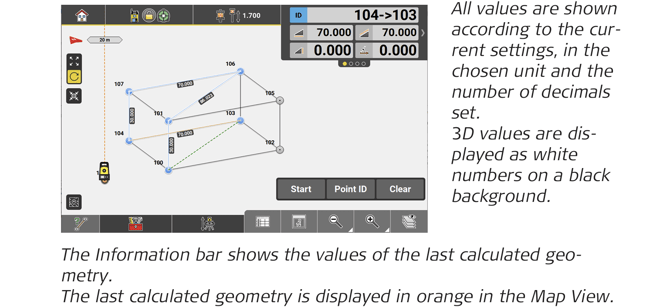
➜ The Information bar always shows the ground/ 2D line and offset
  values, while the Map View, if configured accordingly (see step 3.), shows the 3D values.
Toolbox functions
Function Description Radial
Tap to check geometries using the radial method. Polygonal
Tap to check geometries using the polygonal method. Point to line
Allows you to check points with reference to a line or a polyline. Block Volume

Tap to calculate block volumes. Save for Report
Tap to save the currently displayed result. Manage Calculations
Allows you to view and delete already created Checks calculations.
• To view details of a calculated result, tap the arrow button to the right.
• To delete a calculated result, tap its name to select it and tap to confirm deletion.
Slope Indicator
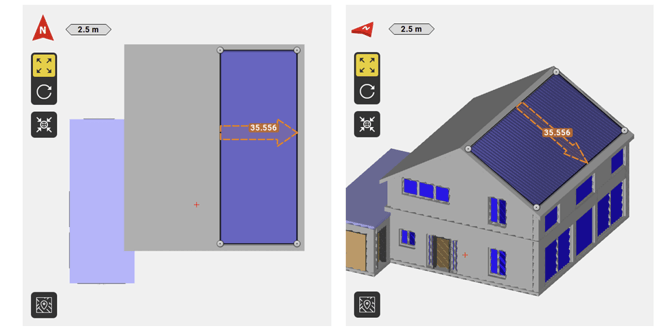
Active Scan and Adv. Surfaces licence needed. Enable this option as a visual aid to quickly identify sloped surfaces in IFC models that seem to be flat on the display.
The indicator appears on selected objects when the surface of the object has a slope between 0.1 to 45.0 degrees (up or down).
Information bar values
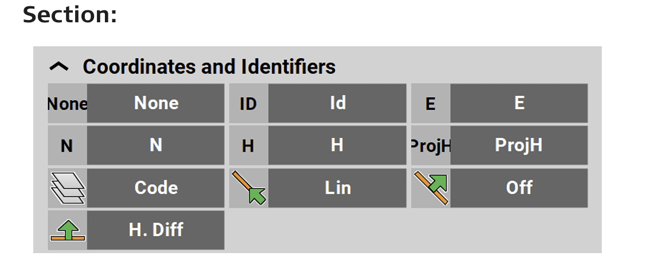
Type/Icon Description Id
Point ID of the current point to record. E
East value at the current target position. N
North value at the current target position. H
Height at the current target position. ProjH
A value set during project creation to define a height shift for measured points in the project. Code
Code/layer for the next point to record. Lin
Horizontal line value (2D) from the measured point along the selected line. Off
Offset value at measured point to the selected line. H. Diff
Height difference, from the measurement position to the start of the control line. Or with a reference line selected, from the measurement position to the start of the reference line. 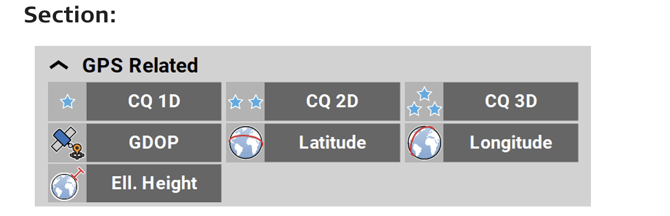
Type/Icon Description CQ 1D

Coordinate quality value for the height information at the current position. CQ 2D

Coordinate quality values for the plain information at the current position. CQ 3D

Coordinate quality values for a combination of the height and the plain information at the current position. GDOP
Geometric dilution of precision quality value at the current position. Latitude

Global coordinate to define the north-south position of a point. Longitude

Global coordinate to define the east-west position of a point. Ell. Height

Global coordinate to define the ellipsoidal height of a point. 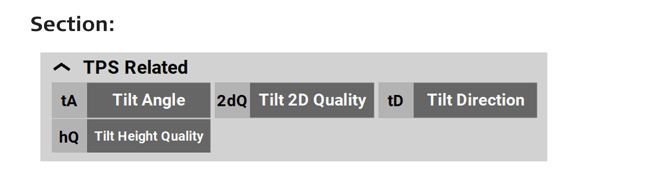
Type/Icon Description Tilt Angle
When using AutoPole: Tilt angle of pole. Tilt 2D Quality
When using AutoPole: Quality of position measurement. Tilt Direction
When using AutoPole: Direction in which the pole is tilted, with regard to the compass. Tilt Height Quality
When using AutoPole: Quality of height measurement. 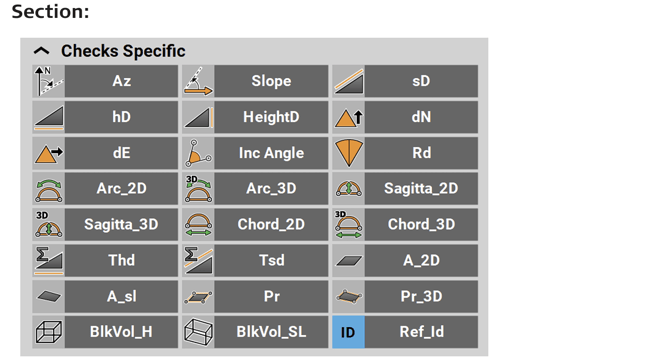
Type/Icon Description Az
Horizontal angle to the last point measured or selected. Slope
Slope angle, between a virtual horizontal line through the second to last point and the current line to last point measured or selected. sD

Slope distance between the last two points measured or selected. hD
Horizontal distance between the last two points measured or selected. HeightD
Height difference between the last two points measured or selected. dN
Difference in the north value between the last two points measured or selected. dE
Difference in the east value between the last two points measured or selected. Type/Icon Description Inc Angle
Included horizontal angle between the last two lines measured or selected.
➜ When selecting points, the last line always ends with the last point measured or selected.
Rd
Radius of last selected arc or circle. Value is always 2D and displayed when an arc or circle is selected. Arc_2D
Arc length 2D.
See also: How to do checks step-by-step➜ No value shown if multiple elements are selected and a point or line is selected last.
➜ No value shown if a polyline including arc elements is selected.
Arc_3D
Arc length 3D.
See also: How to do checks step-by-step➜ No value shown if multiple elements are selected and a point or line is selected last.
➜ No value shown if a polyline including arc elements is selected.
Sagitta_2D
Perpendicular distance from the chord to the arc - in 2D.
See also: How to do checks step-by-step➜ No value shown if multiple elements are selected and a point or line is selected last.
➜ No value shown if a polyline including arc elements is selected.
Sagitta_3D
Perpendicular distance from the chord to the arc - in 3D.
See also: How to do checks step-by-step➜ No value shown if multiple elements are selected and a point or line is selected last.
➜ No value shown if a polyline including arc elements is selected.
Chord_2D
Line distance between start and end point of the arc- in 2D.
See also: How to do checks step-by-step➜ No value shown if multiple elements are selected and a point or line is selected last.
➜ No value shown if a polyline including arc elements is selected.
Type/Icon Description Chord_3D
Line distance between start and end point of the arc- in 3D.
See also: How to do checks step-by-step➜ No value shown if multiple elements are selected and a point or line is selected last.
➜ No value shown if a polyline including arc elements is selected.
Thd
Sum of horizontal distances between the points measured or selected. Tsd

Sum of sloped distances between the points measured or selected. A_2D
Horizontal area, covered by all points measured or selected. A_sl
Sloped area, covered by all points measured or selected. Pr
Horizontal perimeter, available with at least three points measured or selected.
The value is always calculated from the closed figure of the measured/selected points.Pr_3D
Sloped perimeter, available with at least three points measured or selected. The value is always calculated from the closed figure of the measured/selected points. BlkVol_H
Calculated horizontal block volume. Available as soon as the needed height value is entered and an area can be calculated. BlkVol_SL
Calculated horizontal block volume. Available as soon as the needed height value is entered and an area can be calculated. BlkVol_SL
Calculated sloped block volume. Available as soon as the needed height value is entered and an area can be calculated. Ref_Id
Reference ID of the last two points measured or selected, in the corresponding order. 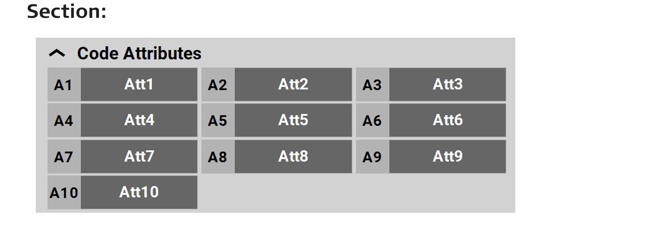
Type/Icon Description Att1 ... Att10
Code attributes 1 to 10 of measured point. Up to 25 attributes can be defined, up to 10 attributes can be displayed in the Information bar.