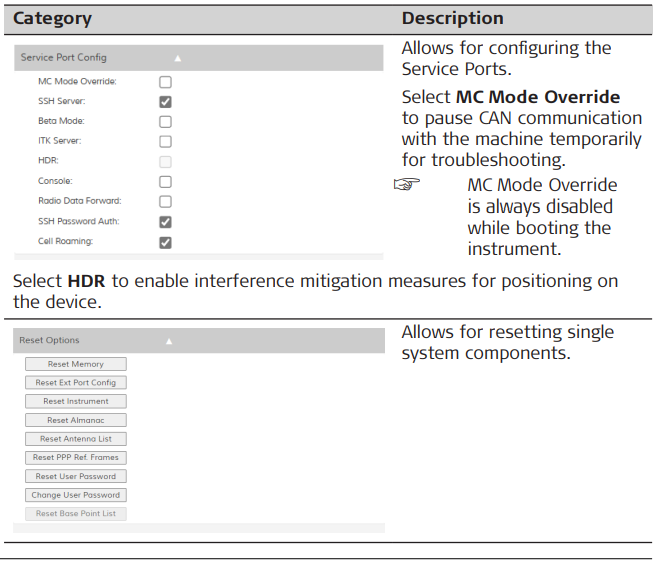
Getting connected to the Web Interface: Connection to the web interface is established via Bluetooth.
➜ The following instructions are based on using Windows.
- Power on the iCG160.
- On your computer go to Start Menu > Settings > Devices.
➜ Activate Bluetooth if not yet switched on. - Click "Add Bluetooth or other devices".
➜ Make sure that computer and sensor are in reach for a Bluetooth connection. - Click Bluetooth and select the sensor from the list. Wait for the connection to be established.
☞ The sensor can be identified by its serial number. - Go to Start Menu > Settings > Network & Internet. Under Advanced Network Settings click "Change Adapter Options"
In the Network Connections page double-click on "Bluetooth Network Connection".
Finally, right-click on the sensor that you have just added and select
Connect using > Access Point from the context menu. - Enter one of the following options into your browser:
• 172.16.0.1
• http://www.icgsetup.leica-geosystems.com
User name is "leica".
When you log in for the very first time enter the serial number of your sensor as default password. - Before you can proceed and use the Web Interface you will next be prompted to change the default password.
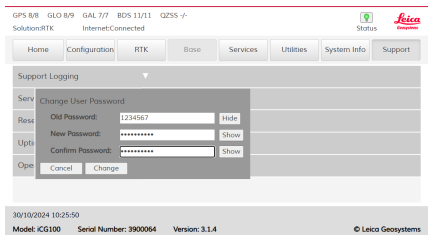
• As Old Password enter the serial number of your sensor.
• Define a New Password.
• Enter the new password again to confirm it.
• Press Change to set the new password.
• Use the new password for future log-ins. - Start configuring the iCG160 using the Web Interface.
➜ For mobile devices it is only required to pair the sensor via Bluetooth.
Web Interface - Frame: The header section contains a status information bar.

The footer includes information on the connected receiver, its serial number and firmware version.

➜ The frame will always be visible independent of which tab you open for further configuration.
Status information bar
The status bar shows the satellite status, internet connection, antenna configuration and receiver status information.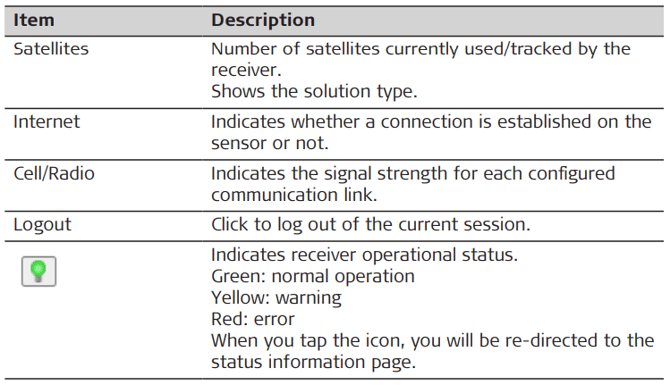
Sensor Configuration 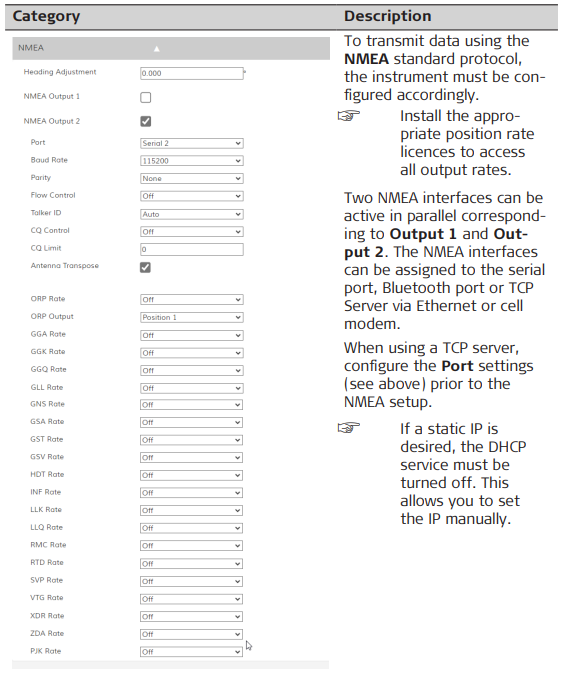
A different Talker ID can be manually entered once it is set to User. For CQ Control choose between Position only, Position & Height or Height only. When CQ Control is active the CQ Limit must be defined.
Once an NMEA link is configured, each NMEA message can be set to stream
at the desired Rate. Refer to NMEA Message Formats for more details on NMEA messages.
Security Configuration: The Security section on the Configuration page allows the configuration of a One-Time password as alternative login. 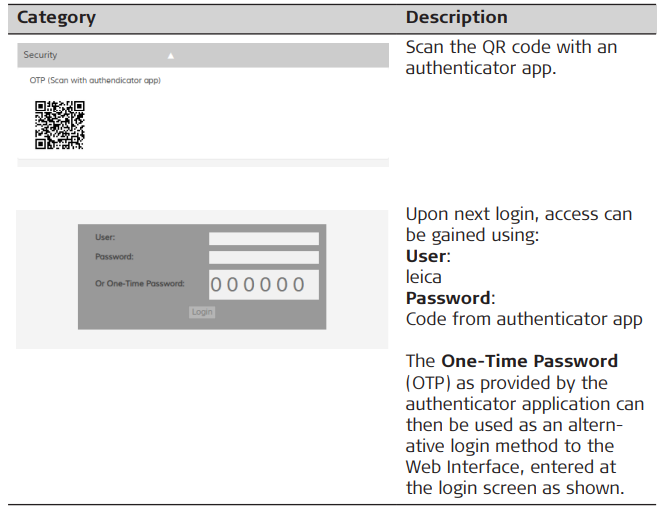
Support